Sunday, April 5, 2015

'Wunderlist' for Apple Watch Brings To-Do Lists, Agendas and Reminders to Your Wrist

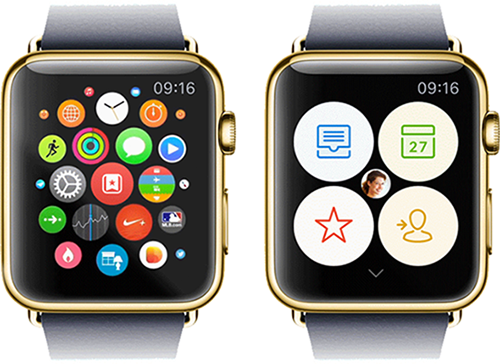
Wunderlist has provided a closer look at its Apple Watch companion app, which appeared on the App Store on Thursday ahead of the device's launch next month. The app is designed with a unique Home View that provides access to your most important items first, with four buttons that display a bird's eye view of your to-do lists, agenda and reminders on your wrist.

Wunderlist on Apple Watch


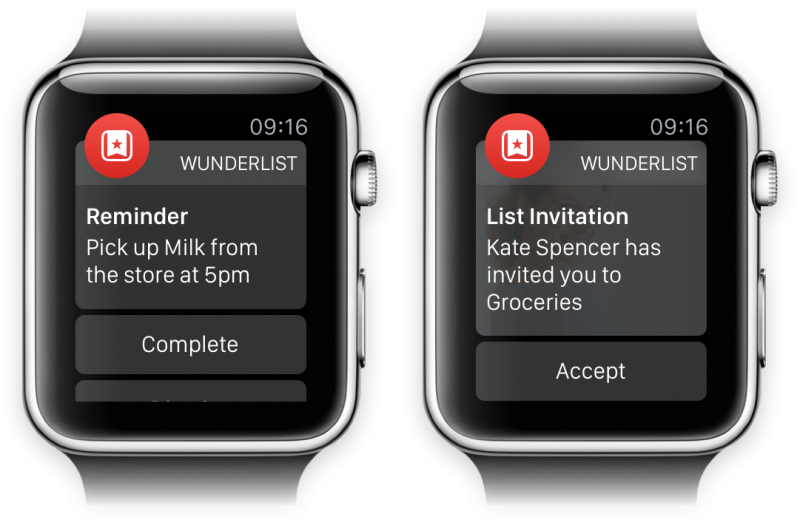
Wunderlist for Apple Watch delivers a hand-free experience in situations where you might normally use your iPhone, such as while shopping at a supermarket and checking items off your grocery list, or when using smart voice input to add to-dos for an upcoming meeting. The combination of Glances and real-time notifications ensure that you will stay up to date with important things during your day, be it during your morning commute, at the office or at home.
"As you move through the day, you won't even have to open Wunderlist on your Watch to get stuff done. Just take a look at our Glance during breakfast to review your most important to-dos for the day. Thanks to Wunderlist's real-time notifications, a subtle tap on your wrist will let you know what your colleagues are working on during your morning commute, and remind you to pick up the milk on your way home from work."
Wunderlist for Apple Watch features custom animations for interacting with the app, and its developers have carefully considered which font sizes, layouts and interactions would work best with limited screen real estate. The result is a design that was inspired by Wunderlist's brand-new colorful sidebar icons, with the majority of the user interface consisting of white text on a black background.

Wunderlist Apple Watch Views


Ultimately, the developers behind Wunderlist for Apple Watch wanted to create software that gets out of your way, all the while providing multipurpose functionality for managing your day-to-day life. Apple Watch, and by extension the wrist, provides a more natural setting for to-do apps such as Wunderlist and Todoist, so it will be interesting to see how developers build upon these apps in the future.

Wunderlist [Direct Link] is free on the App Store for iPhone, iPad and Apple Watch.


Coppertino Announces LOOP Music Locker With Support for HD Audio Files, VOX Music Player for iOS [Mac Blog]

Coppertino, the company behind the popular VOX Music Player for Mac, has some major announcements to share exclusively with MacRumors readers today, including its upcoming expansion to iOS, an update to the VOX Mac app, and the launch of an all new music storage service, LOOP.

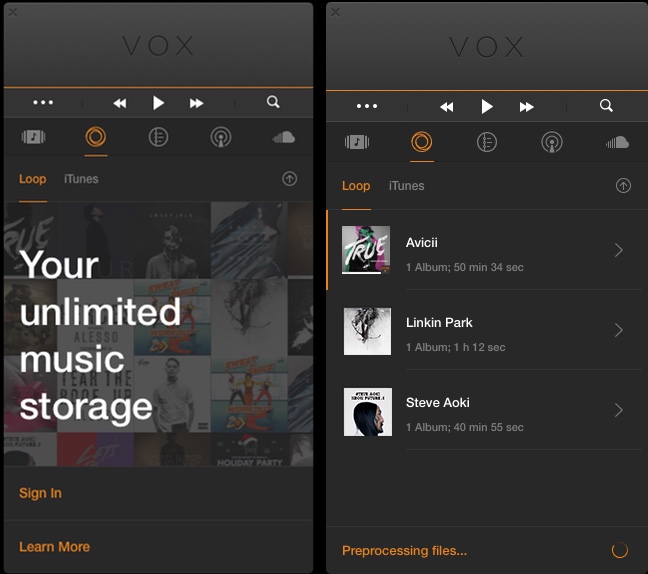
LOOP is a new cloud-based music locker service that will be built in to both the VOX Music Player for Mac and the upcoming VOX iOS app. Unlike most music lockers available, LOOP will support any type of music file, including FLAC, and it offers unlimited storage. Songs stored in LOOP can be streamed in full quality to any device with the VOX Mac and iOS apps, and music can also be cached for playing offline.

voxloopformac


Many of the popular music lockers like iTunes Match or Google Play Music limit the number of songs that can be uploaded and only support a few file types. iTunes, for example, only supports MP3 and AAC, while Google Play Music supports MP3, AAC OGG, and WMA. You can upload FLAC music files to Google Play Music, but they'll be transcoded to MP3. LOOP can play them natively, but access to high quality music files comes at a cost -- the service is priced at $49.99 per year or $4.99 per month, which is a bit more expensive than Google Play Music (free) and iTunes Match ($24.99/year).

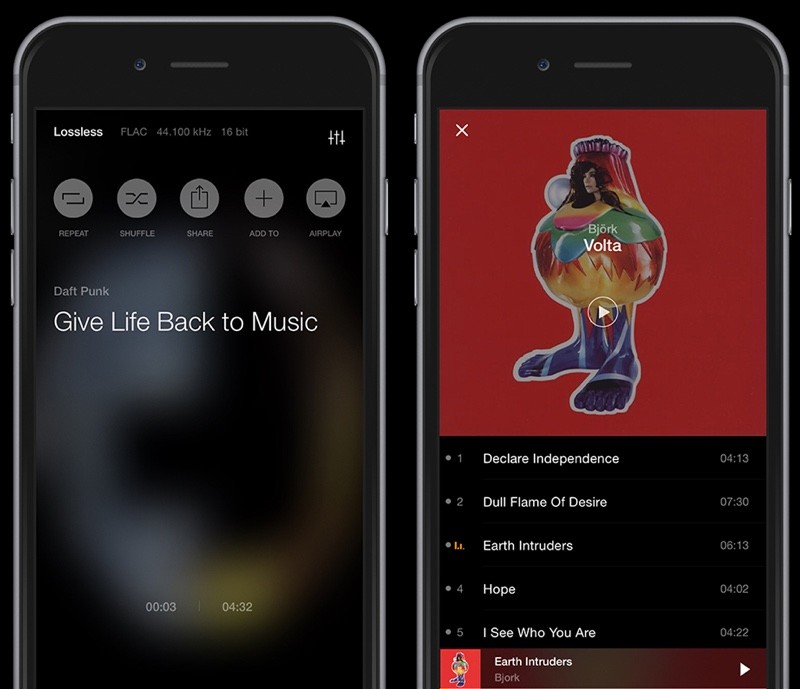
Along with LOOP, Coppertino's iOS app is big news, because it's the first time the VOX Music Player has expanded beyond the Mac. Like the Mac app, the iOS app will play any type of music file and it's deeply integrated with the LOOP music service, giving users access to all of their uploaded songs and albums. Like the VOX Music Player for Mac, the iOS app will be available for free -- only the LOOP music storage service costs money.

voxforiphone


Coppertino's new music service, its upcoming iOS app, and the updated Mac app are still in testing and aren't quite ready for launch, but the company wants to get MacRumors readers involved in the beta testing process with early access to the apps and to LOOP music storage.

The first 700 MacRumors readers who are interested in checking out the LOOP music storage locker and the new VOX apps for Mac and iOS can sign up on Coppertino's website. Those of you who are interested just need to enter an email on the Coppertino site and the company will send a link to download the apps and instructions on signing up for LOOP. Testers will need to install both the iPhone app and the Mac app to take part in the beta program.

During the beta testing period, MacRumors readers will get free access to the LOOP music locker to test it out and can opt for a longer free trial period after the service launches. MacRumors readers will also get an option to purchase access to the LOOP service at a discount, dropping the price to $34.99 for the year instead of $49.99.

Coppertino's existing VOX Music Player for Mac, which will get an update with the LOOP service in the near future, can be downloaded from the Mac App Store for free. [Direct Link]


Saturday, April 4, 2015

Everything You Wanted To Know About Your Iphone


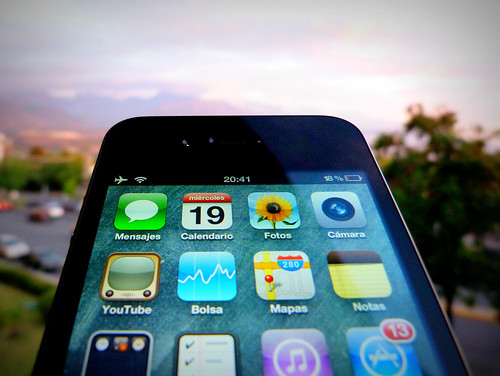
The iphone is truly an incredible work of art. The interface is well-designed, and features a wealth of apps to customize with. There are hidden options that allow you to optimize your phone even further. This article contains helpful tips for enhancing how you use your iphone.


Keep up on all of the new updates for your phone as they are released. If you are diligent about doing this, you can be more secure in the fact that your phone will not be subject to glitches and viruses. This causes you to make certain that all pictures and important data are stored elsewhere so that if your phone gets damaged, you will not lose everything.


If adding the “.com” ending of website addresses on your iphone is a chore, you don’t have to. Just enter the main phrase in the URL, and Safari will put you at the right place. It might seem like a small feature, though if you use the internet a lot on your phone, this will save a significant amount of time and battery usage.


While in the Safari browser, you can simply make a phone call with one tap. For example, you may want to find a local dry cleaner. When you find a number, you don’t have to go to the phone part of the iphone. All you have to do to place a call is to tap the number displayed in the browser window.


It is easy to create your own shortcuts and dictionary on an iphone. When you use this, your phone knows exactly what you are trying to change. You can program your phone with your own short cut phrases. This also works with the autocorrect.


Do you want to include an umlauted or accented letter in your conversation, but don’t know how? This is actually quite simple to accomplish. Touch the letter you want to change, and hold it for a bit. A box will appear with some extra keys. There you can choose as many of those keys as you’d like!


Get quick access to your email by tagging your account with your iphone. This can be very useful in that it permits you to receive notifications with every incoming message, allowing you to read them instantly. You can tag one account, or multiple accounts if you want.


Has the perfect shot ever escaped you because you were not able to open up your camera app quickly enough? If so, check this tip out. While you have the screen locked, quickly touch Home button two times. A camera icon will appear at the bottom of your screen after you do this. Press this icon to enable the camera.


Avoid wasting your time using suggested words on the iphone. If you’re texting or using email on your phone, simply tap any part of the screen to get rid of the suggestion box. This will save you hitting the x at the end of every word.


Your iPhone’s calendar is a great tool to help you keep organized. You can add events directly to the calendar without needing to use the “+” setting. If you’re in “Day” view, tap and hold down on an hour to automatically add an event for that hour. You’ll have more time to accomplish more with faster scheduling.


You can mark emails as unread; however, the option is not visible on the main, mail screen. Simply hit “details” and find the “unread” feature which will cause your email to appear as unread when you next return to it.


The iphone is a very sophisticated piece of technology. It is quite powerful looking and can run so many different programs. If you use the tips in this article, you will have your iphone optimized so it can be used to its fullest potential.

Think Your Iphone Is Just A Phone? Think Again!


You already knew that your iphone isn’t a regular, mediocre phone. You purchased an iphone because you knew what you wanted from it. But, you probably don’t know everything that the iphone is capable of. Here are some great tips for you to really have fun with your iphone.


To get the most out of your iphone, remember that Siri has a ton of unique options you can use, like location reminders. It is no longer necessary to ask Siri to remind you to call the office at a specified hour. You can also ask Siri to give reminders when you arrive or leave a particular place, such as to phone your employer when you arrive at home. Your phone will detect where you are and tell you about whatever reminder you set. Using this can make it possible to set reminders even when you are not sure when you will be home.


The iphone has made it easier than ever to provide suggestions based on the individual user by allowing you to create your own shortcuts and add words to your dictionary. As you dictate or type, the dictionary will know what you are saying. You can add more shortcuts and phrases by programming them into your phone. The keyboard automatically corrects your typing as you go.


Special Characters


If you want to use special characters in your text, the iphone makes it easy. This is how to go about doing so. Use your finger to select the letter, then hold it down for one or two seconds. A pop-up box should appear with extra keys. Now you can include special characters any time you wish!


When you are looking at information from a webpage using your iphone, practice scrolling using one or more fingers. If there are smaller windows within the larger webpage, one-finger scrolling navigates through each individual window. Two-finger scrolling scrolls through the whole webpage.


When your phone is locked, you will still see incoming messages. You may like this feature, or you may hate it. If it is not to your liking, there is an option to remove this facility. In your Settings, navigate to the “messages” option that is found in your “notifications.” Here you have the option to turn the Show Preview setting to OFF.


Is the process of loading the camera app slowing down your photography and hampering your shutterbug skills? If so, check this tip out. With the screen in the locked position, give two quick taps to the Home button. There will a little camera icon in the bottom right hand corner. You tap the icon to quickly enable your camera functions.


If you are someone that places a high value on privacy, think twice before using Siri. Apple uses an internal server to hold and store the things you say to Siri. This is to improve the program’s speech recognition capabilities, and they keep the files secured. However it’s best to be aware that any time you speak to Siri, you may be recorded.


An iphone can give you what you need in your phone and more than that; you just have to know what it can do. The tips in the article have hopefully helped you see some of the great ways that you can use an iphone to your advantage! Have fun using your iphone!

Friday, April 3, 2015

Tips For Mastering Your Fantastic Iphone Faster


Owning an iphone is just not having a simple phone, but this is probably something you’re already aware of. That’s probably why you bought one in the first place. But, you probably don’t know everything that the iphone is capable of. Keep reading below to find out some awesome tips and tricks on how to make the most out of your phone.


When you have an iphone, you do not need to worry anymore about getting lost. The maps application is integrated into the software when you purchase the phone, and it allows you to view your location whenever you have service. This makes it easy to find your way home, or locate somewhere new if you have never been there before.


Remember to update the phone as updates become available. This means that your phone will always have what it needs to function properly. Updates also allow you to save your photos and important files to your computer.


When you know how to use volume controls for picture taking, you can take the picture with your headphone cord. By using the cord buttons with one hand, you can keep your phone hand steadier. When you do this, you ensure that the device is not shaken. As a result, your image will appear much more crisp and clear.


One of the best buys you can make for your iphone is a protective screen. Without protection, your phone’s screen will get nicked and scratched. Tiny bits of dirt from fingers can be responsible for scratches. Make sure to always protect the screen of your phone.


Your iphone can help you get from one place to another. You can use the map feature as your GPS to find locations or amenities along your route. Bookmark the map for ease of use.


Invest in an app that lets you upload documents and files onto your iphone like a normal storage device. It is easy to grab text files, videos, music and photos. Just open them up on your iphone, or you can plug your phone into a computer.


Your iphone has a default setting that shows a preview of any incoming messages on your phone’s lock screen. The may seem convenient to you or it may not be what you want at all. In the latter case, you’ll be pleased to know that this is a feature you can easily disable. To disable this feature, open the message notifications under the Settings menu. The facility you wish to disable is known as “Show Preview”.


An iphone is more than just a phone; to maximize its benefits, you have to learn about its many beneficial functions. The tips in the article have hopefully helped you see some of the great ways that you can use an iphone to your advantage! You should be able to fully enjoy your iphone experience.

Want To Get More From Your Iphone? Read These Tips


It is not hard to connect your various social media accounts to your iphone. However, some people do not know how this can be done. If you don’t know how to set your phone to link with your favorite social accounts, you will find what you need to know in the article below.


Now that you have an iphone, getting lost is a thing of the past. The maps application is integrated into the software when you purchase the phone, and it allows you to view your location whenever you have service. This can help you find your way if you are lost or take a wrong turn.


It’s easy to place a call while using Safari to browse the Internet. For instance, imagine you are looking for a dry cleaner online. When you locate the phone number of the cleaners, you don’t need to switch over to the phone component of your iphone. Instead, tap on the phone number, and the call will immediately connect.


You can easily create shortcuts to websites you visit frequently. First, visit the website. When you get there, tap the “Go” button. You will have the choice to add a site to the home screen. Once the shortcut is there, you can name it whatever you want.


Though many people use their iphone for surfing the web or email, many are not aware of how easy saving images from these can be. Tap on the image for a period of three seconds and it will give you the option to save it. Next, save options will appear on the screen inside a command box.


The cord on your headphone is capable of shooting photographs. Start off by getting the picture you want and put it in the frame. When the picture is ready to go, engage the cord’s button. The picture will be taken. You can then save the picture like you normally would.


Working with and taking photos on the iphone is a great feature and something most people use to their advantage. It can be difficult to scroll through all of the photos you have taken if they are not sorted. The iphone makes it easy to organize your photos and even easier to find them. It will be easy to locate that needed shot when you do this.


Autotext Shortcuts


AutoText shortcuts save a great deal of time when texting and emailing. Create shortcuts for the phrases that you use most frequently. The AutoText shortcuts feature allows you to quickly type email addresses and other cumbersome phrases. This feature can be located in the iPhone’s keyboard settings area.


If you use the Safari browser, you don’t need to type in “.com” when you wish to access a webpage. For instance, if you wish to visit Amazon.com, you only need to type “Amazon” into the address bar to be directed right to the site.


After you get your iphone, choose a ringtone that you love. Don’t stick with the default tone like most people do. It’s simple to upload a favorite song or sound byte that entices you. This will make people take notice of your phone.


Don’t let your iphone waste your time with word suggestions. If you’re texting or using email on your phone, simply tap any part of the screen to get rid of the suggestion box. This eliminates the need to tap the “x” to move from word to word.


Make sure you are reserved when it comes to the number of apps you are installing. There are a lot of great apps for the iphone, some free, and some that cost money to use. However, some can harvest your information or slap you with hidden charges.


Set up word shortcuts on your iphone to type more efficiently. In “Settings”, go to “General”, “Keyboard”, then “Add New Shortcut”. If you know you use a word or phrase commonly you can create a shortcut for it using certain abbreviations. When these shortcuts are typed, the words will automatically be put in.


You don’t have to put up with Siri’s mechanized voice, there are other options. If you want to change the Siri voice, go to your General Settings and find Siri. Then you can set the language to English, German or French. You change the accent to British or Australian. In fact, British Siris are male.


Whenever you have to break away from your email app before your message is complete, remember to tap “cancel” rather than simply closing the app itself. The iphone will then ask you whether you want to have your email saved as draft. If you hit “yes,” you’ll be able to retrieve the email from your draft folder when you’re ready to continue writing.


You can take a quick screenshot at any given moment with your iphone. By pressing down the home and power at the same time you will get a screenshot. Doing this will send a copy of the display to the Images application.


There’s an easy way to cut down on the time it takes to get to your favorites and the music controls of your phone. You just need to visit the “settings” area, then select “general” and finally touch the “home” button. In order to customize, simply double click and select your desired options. This process is fairly easy if you follow all the steps.


You can scroll through your contacts in three ways on the iphone. You can scroll through the whole list with your finger, you can tap a letter to go straight to contacts beginning with that letter, or you can press your finger lightly on the list. Using this third option will scroll through your contacts at high speed.


As you can see, it is easy to stay connected with your usual social media accounts on your iphone. Now you’re just a few clicks away to all your family and friends at all times. Utilize the information found in this article to fully use your iphone.
Thursday, April 2, 2015

Review: Soundprism Electro Mini—Make Your Own Tunes with Ease!


Audanika has developed several trippy music applications that turn your iPad or iPhone into a synth and MIDI powerhouse. The coolest part is that even without musical training or ability, you are still likely to be able to bang out a better than passable melody just by selecting a few random tiles in the app, and it's engrossing and fun to try! Read on to learn how the new SoundPrism Electro Mini ($2.99) brings more synth magic to your iPhone!


We have reviewed SoundPrism before, and now Audanika has recently released Electro Mini for iPhone with a few noteworthy new features! The idea is very much like the original SoundPrism. It works better than can be explained in the screenshots (see video below). I am primarily a guitar player, though I have poked around on the keys for years. I have enough technique to mostly just embarrass myself, and the hardest part is coordinating left and right hand on all those keys. ALL THOSE DARN KEYS!


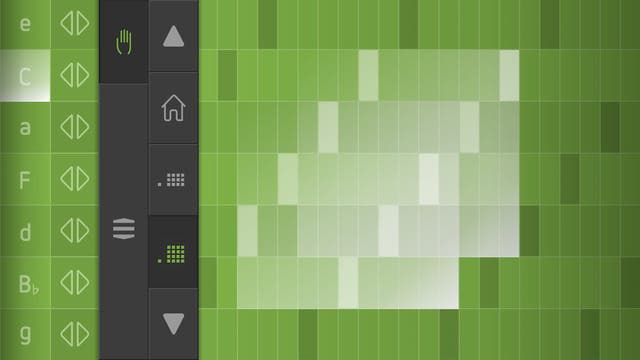
SoundPrism alleviates the pesky detail of hitting a certain selection of keys with two hands by automagically clustering the note selections into a serenely tuned chord around the tile you select. A spot on the rolling multidimensional keys will instantly map the correct accompanying notes. You can use the bass keys for emphasis and set a cadence and it's really easy to get the knack. With the advent of the Electro version for iPad, a sliding controller allows you to manually control the low-pass filter effects provided in the app. Other improvements in the interface make it a bit more flexible than the originals and you can also integrate with Mac or PC audio tools as it supports Core MIDI as in other versions.


Electro Mini is insanely cool, but one complaint I have is that if you want to record or mix in tracks, you need other apps for that, such as the $4.99 Audiobus app. It would be nice to have a few backing beats and a simple record feature built in already. The help feature is well done, but I think it could use a few examples of each feature in action for music newbs.


Pros

  • Superior synth sounds
  • Intuitive interface for easy music creation

Cons


Not many, but could use a simple record feature and better examples of some features


Final Verdict


SoundPrism has been endorsed by Jordan Rudess, legendary virtuoso keyboardist for Dream Theater. It remains one of our favorite music apps as well, and the new Electro Mini version is worth having on your iPhone!


iPhone Life Rating: 4.5 out of 5 stars


Want to master your iPhone and iPad? Sign up here to get our tip of the day delivered right to your inbox.Topics:
  • Apps
  • SoundPrism Electro Mini
  • Top Story
  • iPhone
  • iPod touch
  • Reviews